- Home
- Own a Shop
- Getting Started with Carwise™ Shop Finder
Getting Started with Carwise™ Shop Finder
Please choose the option which best describes you.
Will my shop appear on Carwise Shop Finder?
As a CCC ONE™ user you will have to first activate your shop profile to be searchable when a user clicks on Find a Shop on the Carwise™ website. Follow the instructions below to use the wizard to help setup your Carwise profile.
How do I update my shop's information on my Carwise Shop Profile Page?
Your shop profile page on Carwise uses the information you've already entered into CCC ONE™. If you'd like to make any changes, simply follow the steps below.
Activate Shop Finder
- Sign into CCC ONE
- Click Configure in the top right hand corner
- Select Profile settings
- Find the desired Repair Facility profile and select Edit
- Navigate to Repair Management and expand the folder
- Click on the Carwise option
- As a first time user click on the Activate button to launch the Shop Finder wizard
Note: If you already have an active Carwise Shop Finder profile and wish to make changes click Configure instead.

Accept the Terms & Conditions
- As a first time user you must read and accept the End User License Agreement before activating your Carwise Shop Finder profile
- Read the End User License Agreement
- Select the I agree checkbox to accept the End User License Agreement
- Then continue with the configuration of your Carwise Shop Finder profile

Configure Carwise Shop Finder settings
- Click Configure to start the Carwise Shop Finder profile wizard and update your settings Important: Your changes will be saved only upon completing the wizard.
- If you already have an active Carwise Profile and wish to disable your shop's profile on Carwise Shop Finder click Deactivate instead

Carwise™ Shop Finder Wizard Screens
Address and Phone Number
Use this screen to update:
- Shop Name
- Shop Address
- Web Address
- Primary E-Mail (E-Mail address that appears on the site)
- Phone Numbers (Business Phone) - If you want a second phone number to display, simply select Business again or Cell in the second drop down
Note: To save your changes please continue to click Next until you reach the "Thank You" screen at the end of this wizard.

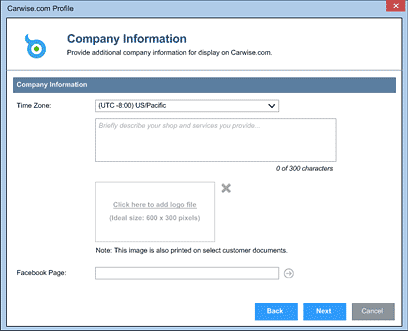
Company Information
Use this screen to:
- Select your time zone to allow your hours of operation to be displayed correctly
- Provide a brief description of your business (300 character limit)
- Upload or modify your shop's logo (ideal: 600 px wide x 300 px high)
- Share your Web Address
- Add or update a link to your Facebook page which can help you stay connected with your customers.
- Click the Go arrow to visit your Facebook profile directly from CCC ONE
Note: Click Next to go to the next screen of this wizard and click Back to go to the previous screen.
Hours of Operation
Use this screen to update your shop's customer service hours
- Check the boxes to select working days
- Select the hours of operation using the drop down menu
Note: Click Next to go to the next screen of this wizard and click Back to go to the previous screen.

Website Profile
On this screen you can:
- Select all of the services your shop offers
- Select all of the payment types you accept
- Update your Data Sharing preferences by simply enabling them
UpdatePlus customers: You can choose to share
customer reviews on your Shop Finder profile and your Shop’s
Facebook page. Please accept the End User License Agreement to
activate this option.
Workflow
customers: You can choose to share dates of completion for
repair plan phases.

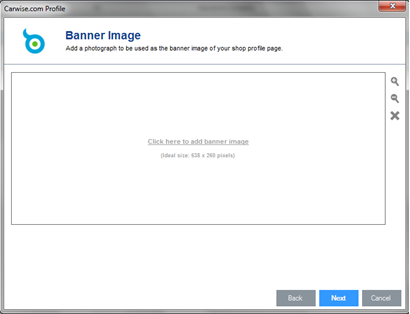
Banner Image (Shop Profile Photo)
From here you can upload a Shop Profile photo for your Shop Finder profile on Carwise.
Tips: For best results upload quality photos with adequate lighting. Avoid displaying license plate numbers of vehicles in your repair facility.
Facility Images (Shop Photos)
From here you can upload images of your repair facility to your Shop Finder profile on Carwise.
Tips: For best results upload quality photos with adequate lighting. Avoid displaying license plate numbers of vehicles in your repair facility.
Note: By clicking Finish all your changes in the wizard will be saved. Clicking Cancel will ignore all your changes and you will have to start over.

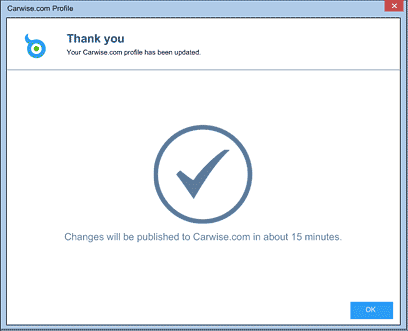
Profile Successfully Updated
Please note that changes to your Shop Finder profile will be published to Carwise.com within 15 minutes.
Preview
Once your changes have been published, click the link at the bottom of the Repair Facility profile Carwise settings screen to see a preview of your Carwise™ Shop Finder Profile page.
Please complete the following form and one of our representatives will contact you shortly.
Note: All fields are required